


Cut Paste Photos
3.86.21K Reviews
App Specs
- Version
- 11.1.0
- Updated On
- License
- Free
- Downloads
- 50,000,000+
- Developer
- Dexati
- Categories
- Photography
- Platform
- Android
Screenshots
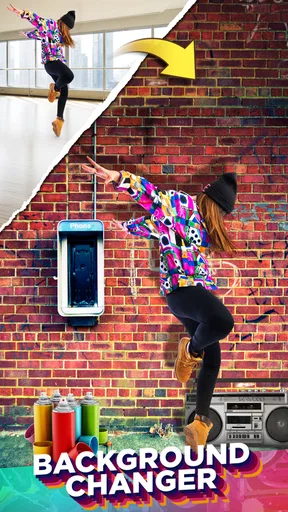


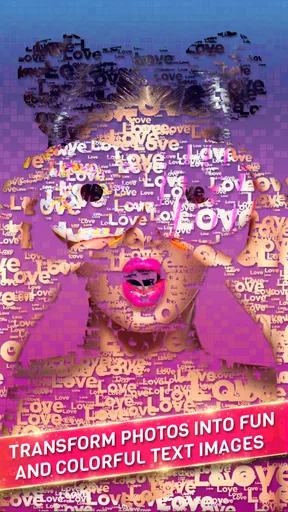
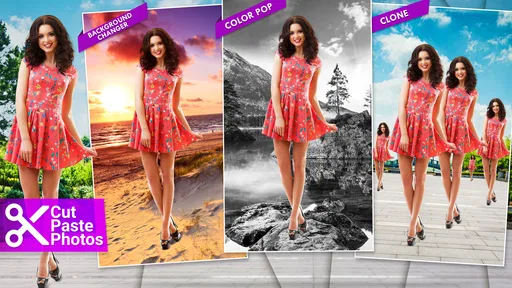
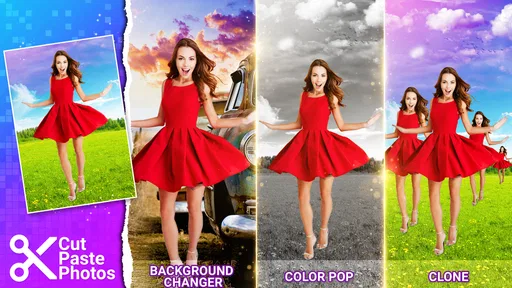
 Analysis by AppCompare
I’d reach for Cut Paste Photos when I have a specific picture in mind that a standard filter or crop cannot deliver: a subject lifted out of one image, placed into another, then adjusted until the composite feels intentional. That focused job is the appeal of this photography app from Dexati. It is free to install, rated for Everyone, and has an average rating of 3.9 from around 280,000 ratings, with over 50 million installs. Those figures suggest it has reached a broad audience, but the useful question is whether its hands-on cut-and-paste workflow suits the way you like to edit.
Start with the picture you actually want to save
Before opening the editor, I’d decide what the finished image needs to do. A playful birthday collage, a simple portrait with a different background, and a polished product image all call for different amounts of edge cleanup and blending. Starting with that purpose helps keep the edit manageable: choose a clear subject, think about where it will sit, and avoid adding effects just because they are available.
A practical example is making a family greeting image from a portrait and a separate photo of a favorite place. The first image supplies the person, the second supplies the setting, and the finished result can be saved for sharing or kept as a personal keepsake. For a quick social post, the same basic idea can become a humorous composition, but the quality still depends on the source pictures matching reasonably well in angle, lighting, and scale.
Getting Started with Cut Paste Photos
First things first, let's talk about the interface. Upon opening Cut Paste Photos, you're greeted with a clean and user-friendly layout. It's straightforward, which is perfect for those of us who aren’t exactly tech wizards. The main menu presents you with options to either start a new project or dive into the other features straight away.
The Cutting Edge Features
The app really shines with its cut-out tool. You simply select the photo you want to work with, and then you can start cutting. The tool is precise, and I was amazed at how easily it let me outline the subject I wanted to extract. You can adjust the size of the cutting tool and even refine the edges to make sure everything looks natural.
Once you've got your cut-out ready, you can paste it onto another image. This is where the fun begins. Imagine putting yourself in a picture with your favorite celebrity or creating whimsical landscapes by combining different elements. The possibilities are endless!
Make the cutout believable, not merely neat
The outline is only one part of a convincing composite. I’d zoom in around complicated boundaries such as hair, sleeves, or objects held in a hand, then zoom back out to check whether the cutout still reads naturally at the size people will see it. A tidy edge can look convincing on a phone but obvious when enlarged, so I would keep the intended destination in mind before spending time on tiny corrections.
Worth Reading Before You Choose

EA SPORTS FC Mobile 26 Is a Bigger Football Game, but It Takes Time

Flipboard Shows What News Apps Must Do Beyond the Feed

Switching to Android Auto Means Rethinking Your Driving Routine

Google Calendar Makes a Crowded Week Easier to Manage

Ludo King Makes the Most of the Minutes Between Plans

Baby Panda World Brings Quick Play to Modern Phones, but Its Game Library Feels Busy
Placement matters just as much. If the pasted subject looks too large, floats above the scene, or faces the wrong direction, a clean selection will not rescue the result. I’d compare the subject’s apparent scale with objects in the background and choose a destination photo with a compatible viewpoint. This is one reason a simple, uncluttered background often produces a better first attempt than a busy scene.
There is also a useful trade-off between speed and realism. A bold collage can benefit from visible cutout edges and deliberately mismatched scenes; a family portrait or keepsake usually looks better when the boundary is carefully refined. I would not spend the same amount of time on both. Decide whether the image is meant to look playful or seamless, then edit toward that goal.
Editing Made Easy
Besides the cutting and pasting, the app offers a plethora of other editing features. You can add filters, adjust colors, and even apply effects like blur and vignette. It’s like having a mini Photoshop in your pocket. The app also supports layering, so you can stack images and adjust their transparency to achieve the desired effect.
One of my favorite features is the background remover. With just a tap, you can erase the backdrop of any photo. This is super handy when you want to isolate your subject or create a clean look for collages.
Build the image in a sensible order
For a more controlled workflow, I’d choose the destination background first and place the main cutout before adding decorative elements. That makes it easier to judge whether there is enough open space and whether the subject belongs in the scene. If I add extra layers early, it becomes harder to see which change is actually improving the composition.
Transparency can help an element sit more softly in a layered design, but lowering it is not a substitute for a good match between the photos. A faint subject may look ghostly rather than integrated. I’d use transparency for a deliberate overlay or subtle texture, and keep a main person or object solid unless the effect is intentionally surreal.
Color adjustments and filters are most useful when applied with restraint. Two pictures taken in different light can look as though they came from separate worlds; nudging their overall color character closer can help the composite feel more cohesive. Blur and vignette can guide attention, but too much can make an edit look processed. I’d check the image once without effects before deciding whether it needs them.
Sharing Your Creations
After crafting your masterpiece, sharing it is a breeze. The app integrates seamlessly with social media platforms, letting you post your creations directly to Instagram, Facebook, or Twitter. For those who prefer to keep things local, you can save your work in high resolution to your device.
Think about the handoff before you finish
A finished edit often has to leave the editor: it may go into a message, a social post, a personal album, or another editing tool. I’d save a version that works on its own before experimenting further, so there is a clear finished copy to return to if a later change weakens the composition. For a design that will be reused, keeping the original photos available also makes it easier to try a different background without rebuilding the idea from scratch.
For a one-off joke shared with friends, speed matters more than painstaking edge work. For a printed keepsake or an image that will be viewed closely, I’d inspect the saved result at full size and look for halos, rough boundaries, or mismatched shadows. The app’s sharing and saving options make the handoff convenient, but they do not remove the need to check whether the exported image suits its destination.
Where the workflow can break
The app is most useful when the task is a cutout-based composition. If what I really want is a quick overall improvement to a photo, a conventional editor built around cropping, exposure, and color may be a more direct choice. If I need a highly controlled professional composite, a desktop editor can offer a more comfortable workspace for detailed selection and careful finishing. Cut Paste Photos occupies a practical middle ground: more focused on combining images than a basic camera editor, without being the tool I’d choose for every demanding retouching job.
Source quality can also limit the outcome. A blurred subject, a complicated outline, or lighting that clashes sharply with the new background can take more effort than the idea seems to deserve. The one-tap background removal is appealing for speed, but I would still inspect the result around fine details rather than assume every edge is ready to paste. When a clean silhouette matters most, a simpler subject and a plain background are often the better starting point.
Who will get the most from it
I’d recommend it to people who enjoy making playful composites, greeting images, simple collages, and visual jokes without first learning a complex desktop workflow. It is also useful when you want to isolate a person or object and try several backgrounds, or when a small edit needs layers, filters, and a few finishing touches in one place. The free app is an easy way to explore that style of editing, though in-app purchases range from $1.99 to $99.99 per item, so I’d check the purchase details before paying for anything.
I’d skip it if my main need were precise color correction across a large photo collection, extensive professional retouching, or a very fine selection on a tiny mobile screen. Those jobs are often more comfortable in tools designed around batch adjustments or detailed desktop control. The current version is 11.0.4 and requires Android 5.0 or later; the app first appeared on September 12, 2014. I would treat it as a focused creative editor rather than a replacement for every photography tool.
A realistic quick project
Imagine I want to make a birthday image for a friend using a portrait and a photo of a favorite destination. I’d pick the clearest portrait, cut around the person, and place them against the destination image. Then I’d check the relative scale, refine any obvious edge problems, and make modest color or blur adjustments only if they help the two sources sit together. I’d save the result, inspect it at the size I plan to share, and send that finished version rather than relying on a preview inside the editor.
That process also shows why the app is more than a one-tap novelty but less than an automatic guarantee of a polished composite. The tool can bring the pictures together; choosing compatible images and judging the final placement are still part of the work. For everyday creative edits, that hands-on control is satisfying. For a deadline or a flawless commercial image, I’d choose a workflow with more room for precision.
My verdict after following the workflow
In terms of performance, Cut Paste Photos runs smoothly on both Android and iOS. I tested it on a mid-range Android phone, and it handled everything without hiccups. The app is lightweight, so it doesn’t hog too much storage space, which is always a plus.
Usability-wise, it’s intuitive enough for beginners but packed with features that even advanced users will appreciate. Whether you're a casual user looking to make a quick meme or a serious editor aiming to craft intricate designs, this app accommodates all skill levels.
Final Thoughts
In a world where visuals are king, having a tool like Cut Paste Photos in your arsenal is invaluable. It combines powerful features with ease of use, making it a top pick for anyone interested in photo editing. Whether you’re crafting personal keepsakes or professional projects, this app offers the flexibility and functionality to bring your vision to life. I’d definitely recommend giving it a try if you’re looking to unleash your creativity with just a few taps.
My recommendation is more specific than that closing enthusiasm suggests: try it when the picture in your head depends on moving a subject from one photo into another. Its cutout, background removal, layers, and finishing effects are well suited to that job, and the app has a substantial audience, reflected in around 6,200 written reviews. But I would not choose it simply because I want every photograph to look better. For that, a straightforward photo editor can be faster and less fiddly.
The main skill it asks for is visual judgement rather than technical expertise. Pick source images that can plausibly belong together, work carefully around the edges that viewers will notice, and judge the saved image at its intended size. Follow that approach and this free photography app can turn a quick idea into a shareable composition; expect it to solve every mismatch automatically, and the rough spots will show.
Pros
- Easy-to-use interface for quick edits.
- Wide range of photo editing tools.
- Supports high-resolution images.
- Variety of background templates.
- Frequent updates with new features.
Cons
- Ads can be intrusive during editing.
- Limited free version features.
- Occasional app crashes reported.
- Some tools require in-app purchases.
- No direct social media sharing options.
FAQs for Cut Paste Photos
What is Cut Paste Photos used for?
Cut Paste Photos is an app designed to easily cut images from their backgrounds and paste them onto new backgrounds or other pictures. It's perfect for creating fun and creative photo edits, collages, and montages. Users can utilize various tools to enhance their images, making it ideal for both casual and professional use.
Is Cut Paste Photos free to use?
Cut Paste Photos offers a free version with basic features, which is sufficient for most casual users. However, there are in-app purchases and a premium version available that unlocks additional features like advanced editing tools and removes ads, improving the overall user experience for those looking for more options.
How user-friendly is Cut Paste Photos for beginners?
Cut Paste Photos is designed with user-friendliness in mind, featuring an intuitive interface that guides users through the process of cutting and pasting images. Tutorials and helpful tips are available within the app, making it accessible even for beginners who have little to no experience with photo editing.
What are the system requirements for installing Cut Paste Photos?
To install Cut Paste Photos, users need an Android device with at least version 4.2 or an iOS device running iOS 9.0 or later. The app is lightweight and doesn't require high-end hardware, ensuring smooth performance on most modern smartphones and tablets.
Does Cut Paste Photos protect user privacy and data?
Cut Paste Photos prioritizes user privacy by adhering to standard data protection practices. It requires only necessary permissions for functionality, and user data is not stored or shared without consent. Always review the app's privacy policy for detailed information on how your data is handled.


